5.5 Downloading and Printing a Word version of a Book
Affinitext stores all the original documents for the WIDP Consultation Library as editable Word files. You can access and download these documents via the Supporting Documents button in a Book. Once you have downloaded a copy of the original Word document you will be able to print the document in its entirety.
STEP 1: To access the Supporting Documents for a particular Book in the library, first you will need to open the relevant Book.
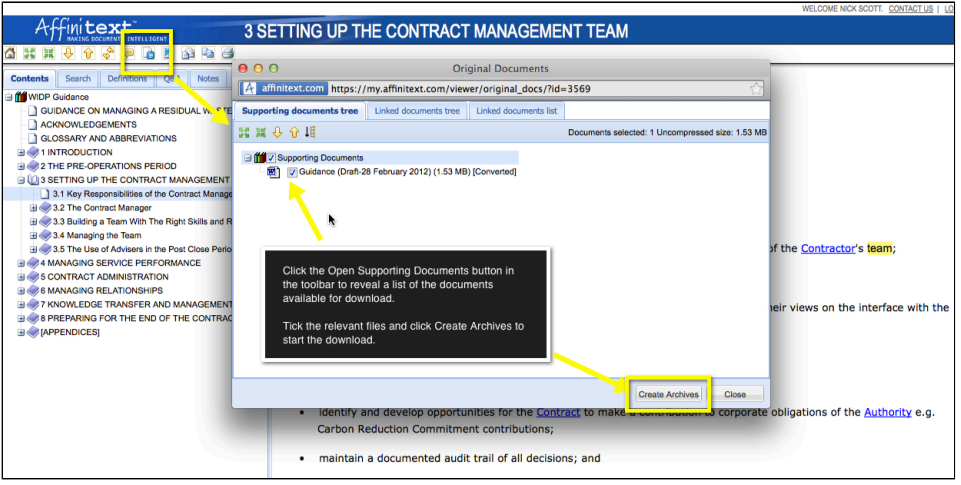
STEP 2: Once you are inside the Book you want, click on the Supporting Documents button as shown in the screenshot below. This opens a listing of original Word documents.
STEP 3: You can now download any number of these Word documents by creating an archive of the documents you wish to download. To create the archive, tick the documents you want to download and click on the Create Archives button. This will create zipped files, which you can save to your hard-drive.
For more information, please refer to the HELP section in the library. The Help section is located in the top right hand corner of the Library Homepage.